In my recent post I walked you through how the category and product pages work, including adding products to the basket. I left it there as posts can get too long. So, in this post I want to continue the walk through and show you the Basket page and how kit discounts and P&P are handled.
I’ll do my best not to get technical. But safe to say this has been a bit frustrating trying to navigate the interplay between how different components work together – or, don’t! And it has needed some re-work when things didn’t play nicely together.
Basket Page
In the previous post I mentioned that when you add a product to your basket a banner appears at the top of the product page. On this banner you can elect to “view the basket”. Once we have the member login added I’m anticipating there’ll be something like a shopping-cart icon on each page; that’s for the future.
In testing it became obvious that a “Continue shopping” button was needed. This wasn’t part of how the shopping platform works, so I’ve added in. This takes you back to the top-level landing page of the shop and allows you to navigate to other products that you may wish to purchase.
Discounts
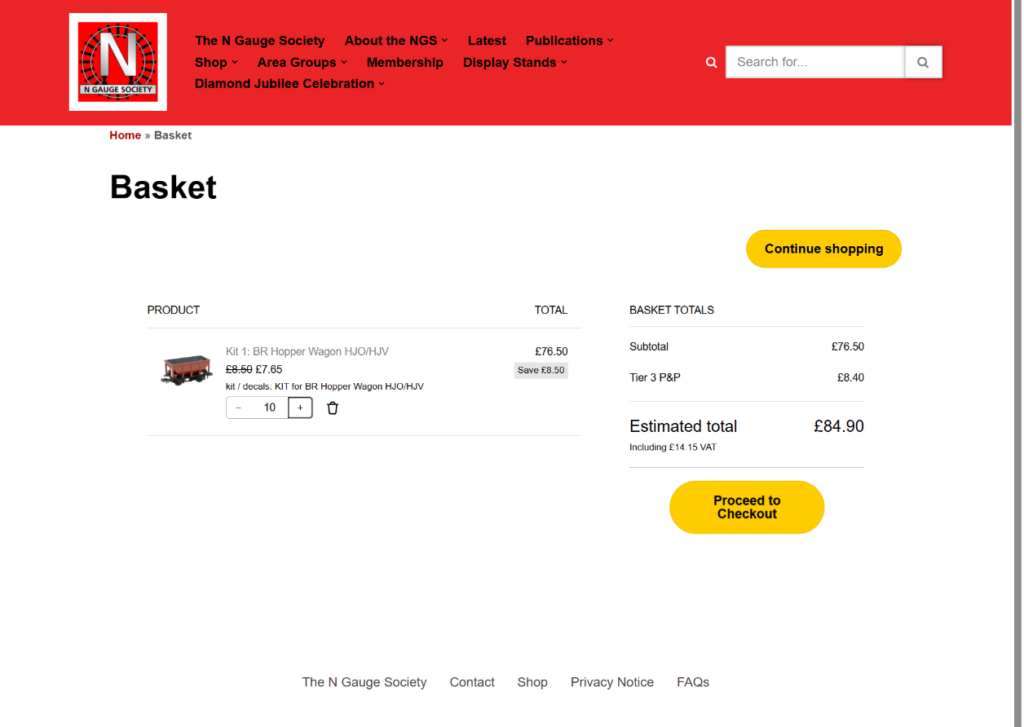
One change from the current webstore is that we now show kit discounts on the Basket page; these are shown as savings.
Discounts that applied previously have been copied over, 5% off for +5 kits and 10% off for +10 kits. Exceptions being where we bundle up 5 wagons together, where the discount is 5% off for 1 bundle of 5 wagons and 10% off for 2 bundles of 5 wagons.
In the example above I’ve chosen 10 Hopper Wagons which attract a 10% discount. This is done by removing the VAT from the original price, discounting the product, and then adding VAT back on.
You can update the number of kits you want within the basket. However it is best to decide on your quantity when you are on the product page itself.
Why is that? Basically recalculating the basket value and discounts is apparently computationally intensive. Behind the scenes the Basket does this only when strictly necessary, and that isn’t instantaneous. That’s a design quirk out of our hands. And as a further complexity it is slightly quicker to remove a discount than to add it; you’d see this if you toggle the quantities up and down. That’s why it’s better to decide how many kits you want on the product pages rather than in the basket.
Post & Packaging
In our old webstore members have to determine if their shop items need Post & Packing to be added and then add it as an additional line item. We actually see quite a few orders come through where members have forgotten to do this. When this happens the Shop Manager has to request a new miscellaneous payment to be made; for a volunteer-staffed organisation any extra work isn’t great and it must irritate members as well.
Like most online shops we’ll now include Post & Packaging as part of the checkout process, making Checkout smoother and simpler for you.
At the time of writing I’ve set up P&P for the UK and this is shown on the Basket page. The intention is in due course to develop P&P rates for Europe and RoW. Once we have the Membership and Subscription modules in place your postal address will automatically determine which P&P zone applies. It’ll also pre-populate the delivery address form – saving you the trouble.
So, how do we calculate Post and Packaging? We base Post & Packaging on the value of the products in the basket. We’ve set up 4 pricing Tiers. Modelmaster products are free of Post & Packaging.
| P&P Tier | Basket value (low) | Basket value (high) | P&P cost (ex VAT) |
|---|---|---|---|
| Tier 1 | £0.01 | £9.99 | £3.00 |
| Tier 2 | £10.00 | £39.99 | £5.00 |
| Tier 3 | £40.00 | £74.99 | £7.00 |
| Tier 4 | £75.00 | upwards | £12.00 |
| Modelmaster | N/A | N/A | £0.00 |
In my worked example above my Basket value was £76.50 and as this falls into Tier 3 my P&P will be £7.00 + VAT; £8.40.
The intention is that we cover the Society’s costs whilst giving keeping P&P as cost effective as possible for members. From a practical perspective the simple Tiered rule set that we’ve used is easy to understand and modify if needed.
Mixed baskets – Modelmaster and other NGS products
In the old webstore we asked you not to purchase Modelmaster products in the same order as other Society products. This was a because of an inherent, structural problem with the way the shop handled orders.
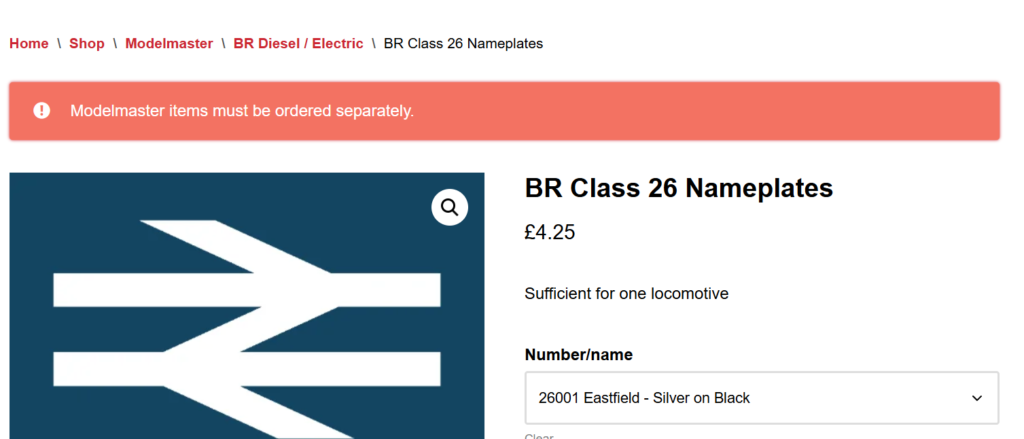
In the new webstore I’ve retained this restriction. This is to prevent the value of Modelmaster products – for which the P&P is included – inflating the value of a mixed basket of products (e.g. kits + Modelmaster) and potentially pushing the P&P calculation into the next Tier up. That wouldn’t have been fair.
Whilst this is inconvenient it is unlikely to affect a large number of members; Modelmaster purchases tend to be less frequently purchased than other items. That said, we’re obviously hoping that with better presentation of these products members may be inspired to re-badge their locomotives. Whilst preparing that product category I certainly have my eye on making some purchases in the near future!
Rather than hoping members will remember this restriction I’ve added some automation to prevent it. As with other aspects of the new webstore this will reduce unnecessary work by our Shop Manager.
In my worked example, where I have some Hopper Wagon kits in my Basket, I’ve then tried to add a Modelmaster nameplate. This results in a reminder banner appearing at the top of the page.
And finally…
Hopefully this post will have given you an insight into how the Basket page will look. And also keep you informed of the progress being made to deliver the new webstore.
I’d like to thank Ian, our Treasurer, for helping with the testing of this piece of work, in particular on checking the calculations on Discounts, P&P and VAT. And Andrew, our intrepid Shop Manager, for articulating how P&P currently works; his experience was invaluable.
This definitely brings you up to date. At present Ian and I are working on the Checkout page and I look forward to showing you that in a future post.
All the best. And happy modelling.
Andy – The NGS Webmaster